
Choosing a WooCommerce seat reservation plugin
A customer has picked Row C, Seat 14. They reach checkout, enter payment details, and learn that someone else bought the same seat thirty seconds earlier. That is not a minor storefront issue. It creates refunds, support work, and a reason not to come back.
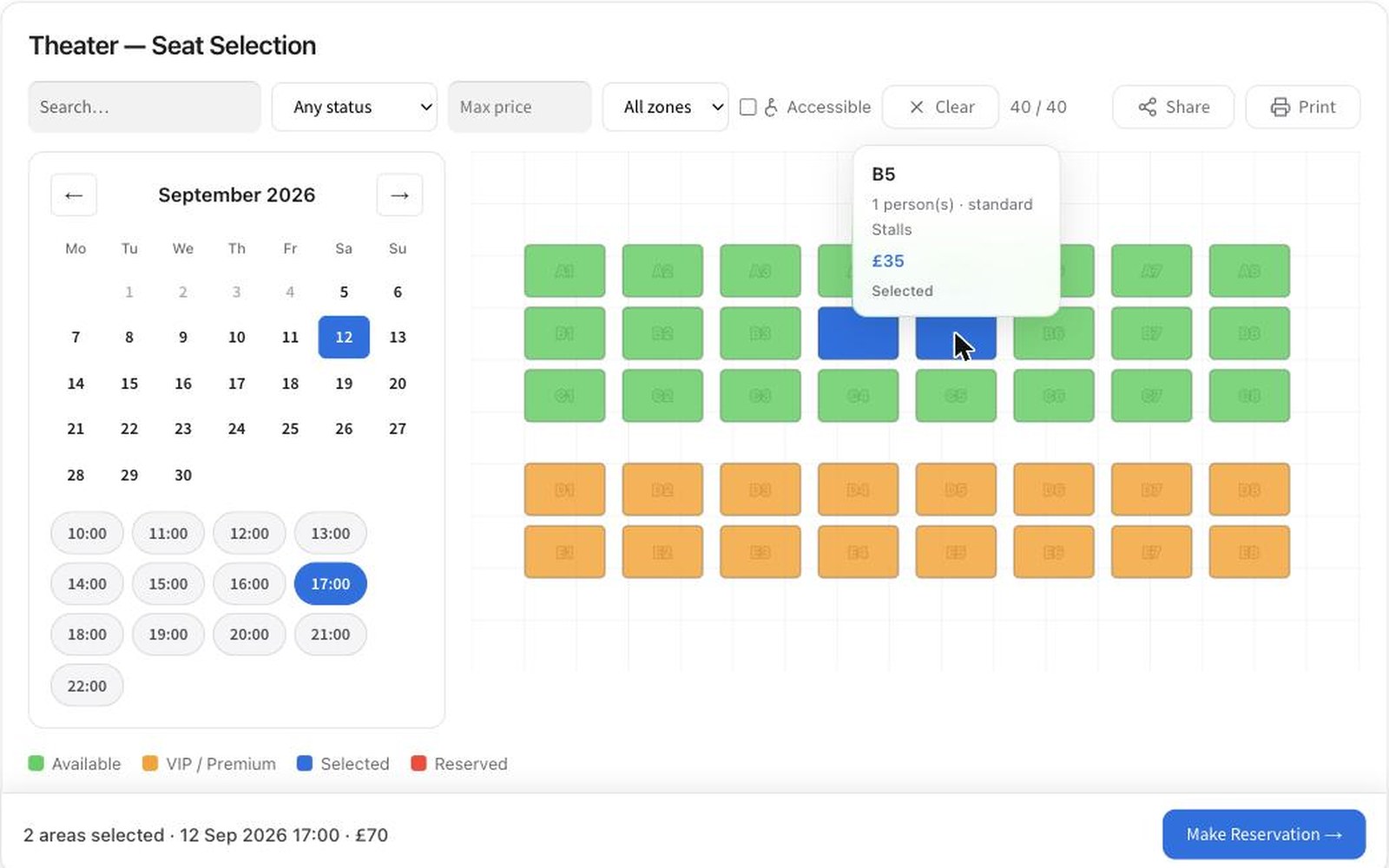
One job matters above the rest
A WooCommerce seat reservation plugin has one job that matters above the rest: turn a visual seating plan into a reliable inventory system. It must show customers what is available, hold a selection while checkout is underway, and prevent the same seat from being sold twice. The rest — colors, labels, filters, and map styling — only helps if that core process is sound.
For theaters, workshops, conferences, sports venues, and any event with assigned places, WooCommerce can handle the payment side well. The seat-selection layer needs to fit its order flow rather than work around it.
Start with the booking model, not the seat map
A polished interactive map is easy to judge in a demo. The harder question is whether its reservation rules match your operation.
First, decide what a seat represents. In a one-night performance, each seat is an individual inventory unit for one event date. In a recurring class, the same physical chair may need to be available separately for every session. At a trade show, the unit could be a booth, table, or floor area rather than a chair. The map may look similar in each case, but the availability logic is not.
You also need to decide whether customers may reserve without paying. Paid checkout is simpler because WooCommerce orders provide a clear record of the buyer, transaction status, taxes, and emails. Unpaid holds can be useful for sales teams or bank-transfer workflows, but they need an expiry rule. A reservation with no expiry is just inventory disappearing from sale.
Ask this before evaluating any plugin: can it model your event, date, pricing tiers, and payment process without custom code? If the answer is no, a feature list will not fix the mismatch.
What a WooCommerce seat reservation plugin must do
The essentials are operational, not decorative. A suitable plugin should let an administrator create a map, name sections and seats, and assign a price or WooCommerce product to each selectable place. Customers should see unavailable seats clearly and select from what remains.
The critical part happens between selection and order completion. When a customer adds Seat 14 to the cart, the plugin needs to check availability again. It should also check before finalizing payment. Browsers can be open for hours, carts can be abandoned, and two people can click the same seat at nearly the same time. The database, not the screen a visitor first loaded, must determine whether a seat is still sellable.
Look for a configurable temporary hold during checkout. The right duration depends on the payment method. Five to fifteen minutes is often enough for a standard card payment. A longer hold may be reasonable where customers must complete a detailed registration form. Make sure expired holds return seats to availability automatically.
A practical implementation should also give staff a clear view of sold, held, blocked, and available places. Blocking matters when a venue has obstructed views, maintenance work, accessibility requirements, sponsor allocations, or seats held for a guest list. If your team cannot make a seat unavailable without editing code or creating a fake order, the day-of-event workflow will be awkward.
Keep WooCommerce responsible for commerce
A seat tool should extend WooCommerce, not replace it with a separate checkout system. That keeps payment gateways, coupons, tax settings, customer accounts, order emails, and reporting in one place.
This is especially useful when an event sells more than seats. A buyer may add a ticket, a printed program, a meal upgrade, or merchandise in the same order. With the reservation data attached to the WooCommerce line item or order, staff have one order number and one payment status to work from.
There are trade-offs. Some reservation tools use their own booking records and only create a simplified WooCommerce product at checkout. That can work, but confirm what happens when an order is canceled, refunded, fails payment authorization, or is manually changed by staff. Seat status must follow the order status rules you actually use.
For example, a seat should not remain permanently sold after a failed payment. Conversely, automatically releasing seats on every refund may be wrong if the customer is moving to another performance and your staff has agreed to hold their place. Good software offers sensible defaults; usable software lets you define exceptions.
Test concurrency in the live demo
Do not buy a seat reservation plugin based on screenshots. Open its live demo in two separate browser sessions. Select the same seat in each one. Add it to the cart. Continue toward checkout. Then test what happens when one session completes an order or lets its hold expire.
This is the fastest way to find out whether availability is actually enforced. Also test ordinary staff tasks: create a new event, duplicate a map, change a seat price, block a seat, and locate the reservation in an order. If the admin process is confusing in a demo, it will not improve when you are handling a real event deadline.
Test on a phone as well. Many ticket buyers arrive from social posts, email campaigns, or QR codes. The map needs to remain usable at small widths, with tap targets large enough to select accurately. A dense 800-seat auditorium may need zooming, section navigation, or a list fallback. A map that works only on a wide desktop monitor loses sales where people are most likely to buy quickly.
Choose self-hosted software with open eyes
Hosted reservation platforms can be appropriate when you want someone else to operate the infrastructure and accept their transaction workflow. They can also introduce monthly charges, per-ticket fees, customer-data dependencies, and limitations on how your event fits your existing store.
A self-hosted WooCommerce solution is a different choice. It runs on your WordPress installation, uses your hosting and WooCommerce checkout, and keeps reservation records under your control. That can mean predictable costs and more freedom to adjust the code or workflow later. The source is yours, and your data does not leave it for a vendor-operated booking service.
Control also creates responsibility. You need reliable hosting, current WordPress and WooCommerce versions, backups, and a staging site for significant changes. If your event has high-demand sales at a fixed release time, test the server under expected traffic. No plugin can compensate for a host that runs out of PHP workers when hundreds of customers arrive at once.
For many smaller organizers, that responsibility is reasonable. They already run WooCommerce, own their customer data, and prefer a fixed software purchase over an open-ended platform fee. WebKoding’s model is built for that buyer: one-time software ownership, inspectable code, and a year of updates and support rather than forced ongoing subscriptions.
Plan the details customers notice
Seat selection becomes part of the buyer’s confidence in your event. Use familiar section names. Mark accessible seating accurately. Explain any restricted-view or standing-room areas before a customer pays. If a seat type includes a benefit, such as early entry or a table-service package, show it next to the selection rather than burying it in a later email.
Pricing deserves the same care. If front-row seats cost more, make the price visible as customers select them. If each ticket has a service charge, state it before checkout. WooCommerce can calculate taxes and payment totals, but the reservation interface should not make the final amount feel like a surprise.
Finally, plan for the door. Staff may need an export, an attendee list, a seat-by-seat roster, or order lookup on a phone. A plugin that sells seats but provides no practical way to verify them at check-in merely moves the problem from checkout to the entrance.
The best choice is not the plugin with the longest feature list. It is the one that lets a customer choose a real place, pay through the store you already control, and leaves your staff with a reservation record they can trust when the doors open.