
How to add seat and table booking to WordPress
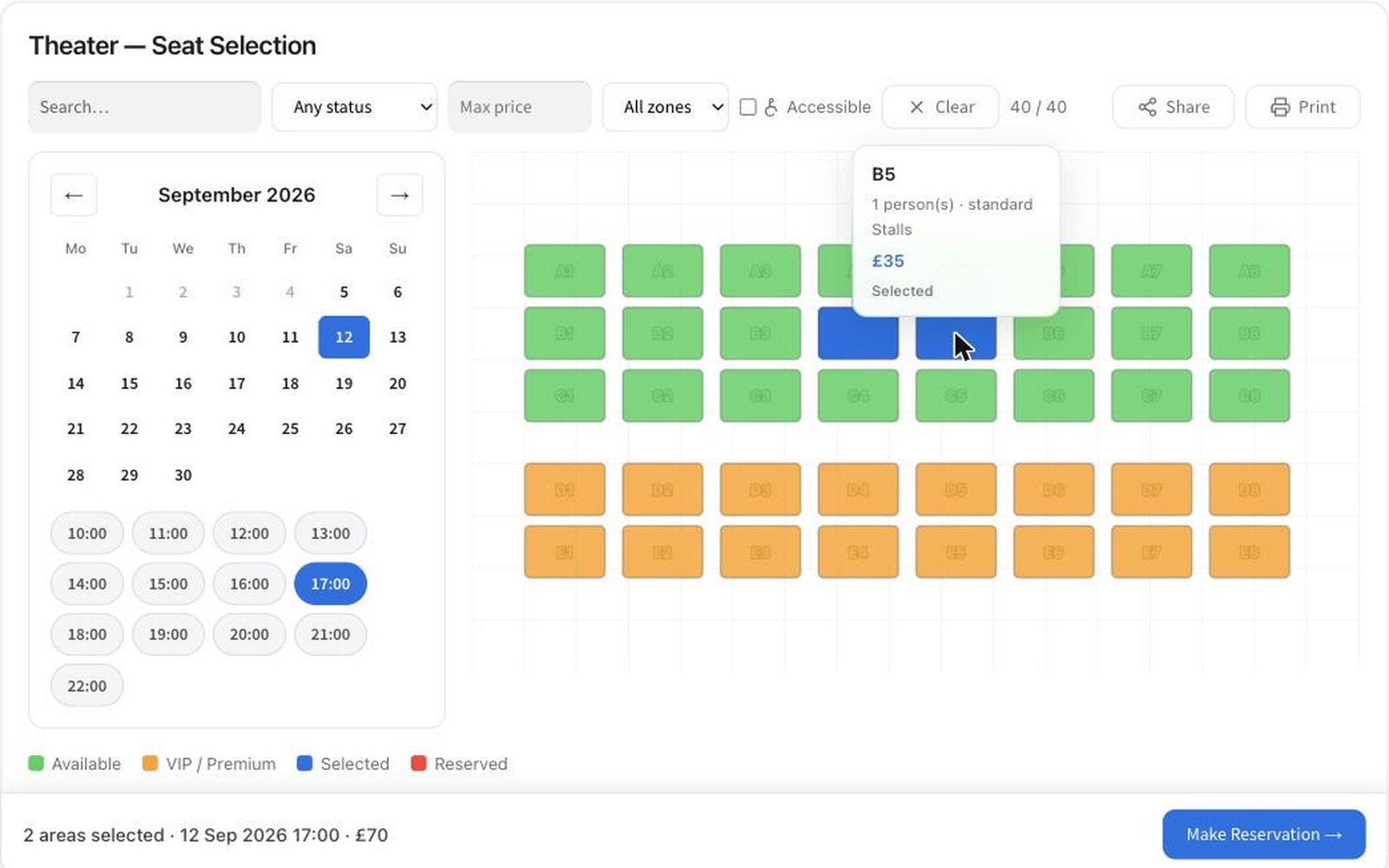
To add seat or table booking to a WordPress site, upload your floor plan, draw each seat or table on it, set prices and capacities, and publish the map on a page. Visitors pick a spot and reserve it. You need WooCommerce only if they pay at checkout; free table reservations work without it.
What you need before you start
- WordPress 6.0 or newer and PHP 7.4 or newer.
- A floor plan image: a JPG or PNG in your media library. SVG works only if your site already allows SVG uploads.
- A list of what can be booked: the name of each seat or table, how many people it takes and what it costs.
- WooCommerce 7.0 or newer with a working payment gateway, if people pay when they book. Skip this for free reservations.
Settle one question first: is a place booked for a whole day or for a time slot? A sunbed is usually a day. A restaurant table or a cinema seat is a slot, and that decides how you set up the map.
How to set it up, step by step
These steps use our own plugin, Seat & Space Reservation Map, which costs $49 once for one site.
- Install the plugin ZIP under Plugins → Add New → Upload Plugin and activate it. It does not ask for a licence key.
- Go to Reservation Maps → Add New and choose the floor plan from your media library.
- Draw the seats or tables. Rectangles are quicker; use polygons for shapes that are not rectangles.
- Set a price and capacity for each one. A front row can cost more than a back row on the same map.
- Set opening hours and closed days for the map, and time slots for the seats.
- Place the map on a page with the Reservation Map block or the [reservation_map id="X"] shortcode.
- Make a test booking as a visitor, including payment if you charge. Then check that the seat shows as taken for that date and time.
Bookings appear in the admin as a list and a calendar, and you can export them to CSV.
With or without WooCommerce
| With WooCommerce | Without WooCommerce | |
|---|---|---|
| Good for | Paid seats | Free reservations |
| What the visitor does | Adds the seat to the cart and checks out | Fills in a guest form |
| Payment | Through your own gateway | None on the site |
| While they decide | The seat is held in the cart | No cart involved |
The hold matters when two people want the same seat at once. What to check in any plugin is covered in choosing a WooCommerce seat reservation plugin.
What it does not do
- It does not take payments on its own. Charging needs WooCommerce and a gateway.
- It does not manage staff rotas, kitchens or table service. It ends at the booking.
- It does not connect to an external booking channel. Bookings live on your site.
Which tool fits which plan
- Visitors reserve a seat, table, desk, parking space or sunbed: Seat & Space Reservation Map.
- Exhibitors book a stand on a hall plan: BoothMap.
- Buyers ask about a flat or plot: FloorMap.
- A host assigns wedding or gala guests to tables: SeatCraft.
Common questions
Is there a subscription? No. It is a one-time price with a year of updates and support, and the software keeps working after that. There is a 30-day refund policy.
Can I try it first? Yes. Open the live demo; no signup is needed.